ESP32: drive a piezo buzzer with tone()
Use a piezo buzzer with an ESP32 to play tones, melodies, and alarm sounds. The LEDC peripheral does this in hardware, with no CPU overhead.
The piezo buzzer is the cheapest output device: $1 and two wires. It plays a tone at whatever frequency you send. Use it for alarms, notifications, status beeps, or simple melodies.
This tutorial covers the wiring, the LEDC peripheral (which does this in hardware), and a pattern for playing tones from a melody table.
What you need
- ESP32 dev board
- Piezo buzzer (the active kind with a small oscillator on the back; about $1)
- 2 jumper wires
The active buzzer has a small chip on the back and plays a tone when you apply power. The passive buzzer (no chip) needs a PWM signal to play a tone. Most cheap “buzzers” are active. For tone control, get the passive kind.
Wiring
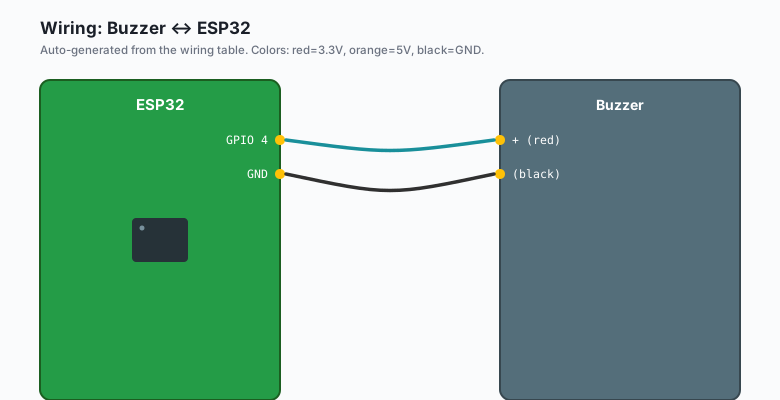
Buzzer + (red) -- ESP32 GPIO 4
Buzzer - (black) -- ESP32 GND
That’s it. The piezo draws about 10 mA, well within the ESP32’s GPIO limits.
If the buzzer is loud, add a 100 ohm resistor in series with the + wire. This drops the volume to a less annoying level.
The code
ESP32 (Arduino)
const int BUZZER_PIN = 4;
const int BUZZER_CHANNEL = 0;

void setup() {
  ledcSetup(BUZZER_CHANNEL, 1000, 8);   // 1 kHz, 8-bit resolution
  ledcAttachPin(BUZZER_PIN, BUZZER_CHANNEL);
}

void loop() {
  // Play a melody
  int melody[] = {262, 294, 330, 349, 392, 440, 494, 523};   // C4 to C5
  for (int i = 0; i < 8; i++) {
    ledcWriteTone(BUZZER_CHANNEL, melody[i]);
    delay(300);
  }
  ledcWriteTone(BUZZER_CHANNEL, 0);   // silence
  delay(1000);
}
ledcWriteTone() is the LEDC’s built-in tone generator. Pass a
frequency in Hz, and the hardware produces that tone on the pin. Pass
0 to stop.
Arduino (Uno, Nano, Mega)
#include "pitches.h"

const int BUZZER_PIN = 4;

int melody[] = {NOTE_C4, NOTE_D4, NOTE_E4, NOTE_F4, NOTE_G4, NOTE_A4, NOTE_B4, NOTE_C5};
int noteDurations[] = {4, 4, 4, 4, 4, 4, 4, 4};

void setup() {
  for (int i = 0; i < 8; i++) {
    int duration = 1000 / noteDurations[i];
    tone(BUZZER_PIN, melody[i], duration);
    delay(duration * 1.3);   // 30% pause between notes
  }
  noTone(BUZZER_PIN);
}

void loop() {
}
Arduino’s
tone()uses Timer2 on most boards, which conflicts withanalogWrite()on pins 3 and 11. Use a different pin if you also need PWM.
MicroPython (ESP32 or Pico)
from machine import Pin, PWM
import time

buzzer = PWM(Pin(4), freq=1000, duty=512)

melody = [262, 294, 330, 349, 392, 440, 494, 523]   # C4 to C5

while True:
    for freq in melody:
        buzzer.freq(freq)
        time.sleep_ms(300)
    buzzer.duty(0)   # silence
    time.sleep(1)
MicroPython’s PWM duty cycle is 0-1023 on the ESP32 (10-bit). 512 is 50% duty. Set to 0 to silence. On the Pico, duty is 0-65535.
What you should see
Upload the ESP32 or Arduino version. The buzzer plays an ascending scale (C4 to C5), pauses, and repeats.
If the buzzer is silent, the active/passive distinction may be wrong. Active buzzers (with the oscillator chip on the back) only produce a single tone when powered. Passive buzzers (no chip) respond to PWM. Check the back of the buzzer for a small black blob; if present, it’s active.
Note frequencies
The melody table uses standard note frequencies. Common reference:
| Note | Frequency |
|---|---|
| C4 | 262 Hz |
| D4 | 294 Hz |
| E4 | 330 Hz |
| F4 | 349 Hz |
| G4 | 392 Hz |
| A4 | 440 Hz |
| B4 | 494 Hz |
| C5 | 523 Hz |
For Arduino, the pitches.h file (from the toneMelody example) has the
full chromatic scale.
The alarm pattern
Most projects use the buzzer for alarms or alerts:
void alarm() {
  for (int i = 0; i < 5; i++) {
    ledcWriteTone(BUZZER_CHANNEL, 2000);   // high pitch
    delay(200);
    ledcWriteTone(BUZZER_CHANNEL, 0);     // silence
    delay(200);
  }
}

void setup() {
  ledcSetup(0, 2000, 8);
  ledcAttachPin(4, 0);
}

void loop() {
  alarm();
  delay(5000);
}
The pattern is short bursts of high-pitched tone, alternating with silence. This is what fire alarms and smoke detectors use because it is more attention-grabbing than a constant tone.
Volume control
For volume control, change the duty cycle:
ledcWrite(BUZZER_CHANNEL, 64);   // 25% duty = quieter
delay(1000);
ledcWrite(BUZZER_CHANNEL, 128);  // 50% duty = louder
At 0% duty, the buzzer is silent. At 50% duty, it is loudest for most piezos. Higher duty cycles can damage cheap piezos.
What you learned
- The ESP32’s LEDC peripheral generates tones in hardware.
- Use
ledcWriteTone(channel, frequency)for clean tone output. - Arduino’s
tone()works the same way, with Timer2. - MicroPython’s PWM module can do this with
freq()andduty().
When something breaks
- Buzzer is silent. Wrong pin (active LOW buzzer needs active drive), or the buzzer is active and only outputs one tone.
- Buzzer is constant, no tone variation. Active buzzer; replace with a passive one.
- Buzzer is loud and tinny. Add a 100-ohm series resistor.
- LEDC conflicts with another pin’s PWM. Use a different LEDC channel number.
What to build next
- The PIR motion tutorial combines with this for motion alarms.
- The HC-SR04 tutorial adds a proximity-based alarm tone.
- The book ESP32 Audio Projects covers MP3 playback from an SD card and WAV file output for richer sounds.