Raspberry Pi: read a DHT22 with Python and the GPIO pins
Wire a DHT22 to a Raspberry Pi's GPIO and read temperature and humidity from Python. The smallest useful Pi project.
A Raspberry Pi reading a sensor is the foundation for home automation, greenhouse monitoring, weather stations, and about a hundred other projects. This tutorial covers the DHT22 specifically, but the wiring and Python pattern apply to most low-cost sensors.
What you need
- Raspberry Pi (any model with GPIO pins)
- DHT22 sensor (the breakout version with three pins)
- 10k resistor (only if your DHT22 breakout does not have one)
- Three jumper wires
Wiring
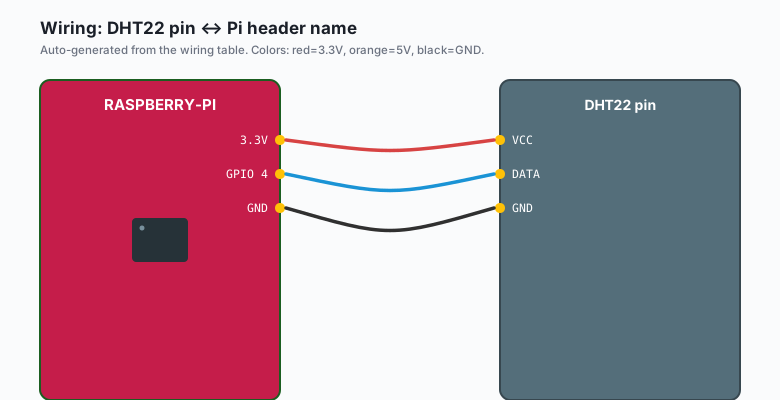
The DHT22 has three pins: VCC, data, and GND.
| DHT22 pin | Pi pin | Pi header name |
|---|---|---|
VCC | Pin 1 | 3.3V |
DATA | Pin 7 | GPIO 4 |
GND | Pin 9 | GND |
The Pi uses BCM numbering for GPIO (so GPIO 4 is pin 7 on the header). There is a diagram at https://pinout.xyz if you need a visual.
The DHT22 should be powered from 3.3V, not 5V. The Pi’s GPIO pins are 3.3V only; applying 5V will damage them.
Install the library
The Adafruit DHT library works on the Pi:
sudo apt install -y python3-pip
pip3 install --break-system-packages adafruit-circuitpython-dht(--break-system-packages is needed on Raspberry Pi OS Bookworm and newer.
The older system Python will not let you install without it.)
The Python script
import time
import board
import adafruit_dht

# GPIO 4 = pin 7 on the header
dht = adafruit_dht.DHT22(board.D4)

while True:
    try:
        temperature = dht.temperature
        humidity = dht.humidity
        print(f"Temp: {temperature:.1f} C  Humidity: {humidity:.1f} %")
    except RuntimeError as e:
        # DHT22s return errors occasionally, this is normal
        print(f"Read failed: {e.args[0]}")

    time.sleep(2)
Save as dht.py and run:
python3 dht.pyYou should see the temperature and humidity printing every 2 seconds.
Why use a library instead of bitbanging the protocol
The DHT22 uses a custom one-wire protocol (not the same as the DS18B20’s one-wire). The timing requirements are tight (microsecond-level). The Adafruit library handles the timing correctly. Writing your own is a debugging exercise you do not need.
The “Read failed” error
The DHT22 returns errors occasionally, especially on the Pi where Linux is
not a real-time OS. The library raises RuntimeError and you should ignore
it (or log it). If every read fails, the wiring is wrong.
Reading from cron
For a project that logs readings every 5 minutes, use cron:
crontab -eAdd:
*/5 * * * * /usr/bin/python3 /home/brian/dht.py >> /home/brian/dht.log 2>&1This runs the script every 5 minutes and appends the output to a log file.
Writing the data to a database
For longer-term storage, SQLite is built in:
import sqlite3
import time
import board
import adafruit_dht

db = sqlite3.connect('/home/brian/sensors.db')
db.execute('''CREATE TABLE IF NOT EXISTS readings (
  id INTEGER PRIMARY KEY AUTOINCREMENT,
  ts TIMESTAMP DEFAULT CURRENT_TIMESTAMP,
  temperature REAL,
  humidity REAL
)''')

dht = adafruit_dht.DHT22(board.D4)

while True:
    try:
        temperature = dht.temperature
        humidity = dht.humidity
        db.execute(
            'INSERT INTO readings (temperature, humidity) VALUES (?, ?)',
            (temperature, humidity)
        )
        db.commit()
        print(f"Saved: {temperature:.1f} C, {humidity:.1f} %")
    except RuntimeError as e:
        print(f"Read failed: {e.args[0]}")

    time.sleep(60)   # once a minute
Run with python3 sensor_logger.py (or via systemd for auto-restart, see
below). After a day, query the data:
sqlite3 /home/brian/sensors.db "SELECT datetime(ts), temperature, humidity FROM readings ORDER BY ts DESC LIMIT 10"Running it as a systemd service
Create /etc/systemd/system/dht-logger.service:
[Unit]
Description=DHT22 logger
After=network.target

[Service]
ExecStart=/usr/bin/python3 /home/brian/sensor_logger.py
WorkingDirectory=/home/brian
User=brian
Restart=always
RestartSec=10

[Install]
WantedBy=multi-user.target
Enable and start:
sudo systemctl daemon-reload
sudo systemctl enable dht-logger.service
sudo systemctl start dht-logger.service
sudo systemctl status dht-logger.service
Now the logger starts on boot, restarts if it crashes, and logs to syslog. This is the right way to run a long-lived sensor logger on a Pi.
When the Pi’s GPIO library does not work
If import board or import adafruit_dht fails, the library is not
installed. Re-run the pip3 install command.
If you are using a fresh Raspberry Pi OS image, you might also need:
sudo apt install -y python3-devFor very old Pi OS versions, the Adafruit library was the old “Adafruit DHT” Python library, not the CircuitPython version. The new version is better; upgrade.
What to build next
- A weather dashboard with a small OLED display.
- A MQTT publisher (combine with the ESP32 MQTT tutorial on the subscribe side).
- A multi-sensor logger (DHT22 + DS18B20 + light sensor).
The MQTT publisher is in the book IoT with Raspberry Pi. The multi-sensor version is in the book Raspberry Pi Sensors.